
Configuring ClamShield in the enterprise: the complete guide
ClamShield: what is this thing?
You've surely heard of ClamAV, the venerable open source antivirus that runs on pretty much every mail server on the planet. The problem is that on Windows, ClamAV is pretty rough around the edges: command line, config files and a freshclam you have to schedule yourself. Not exactly the kind of thing you install on Brenda's PC in accounting.
That's where ClamShield comes in: a free graphical interface (GPL-2.0 licence) developed by Byron Iniotakis that turns ClamAV into a real desktop antivirus: real-time shield, scheduled scans, quarantine, DNS protection, automatic signature updates (official ClamAV, SecuriteInfo, SaneSecurity), and even optional YARA rules and VirusTotal. The project is still in public beta, but it's already really well put together.
The catch is that there are options everywhere. So let me walk you through the configuration I use, screen by screen, explaining why I ticked (or didn't tick) each box. Let's go!
System integration: startup and coexistence with Defender
Automatic startup and context menu
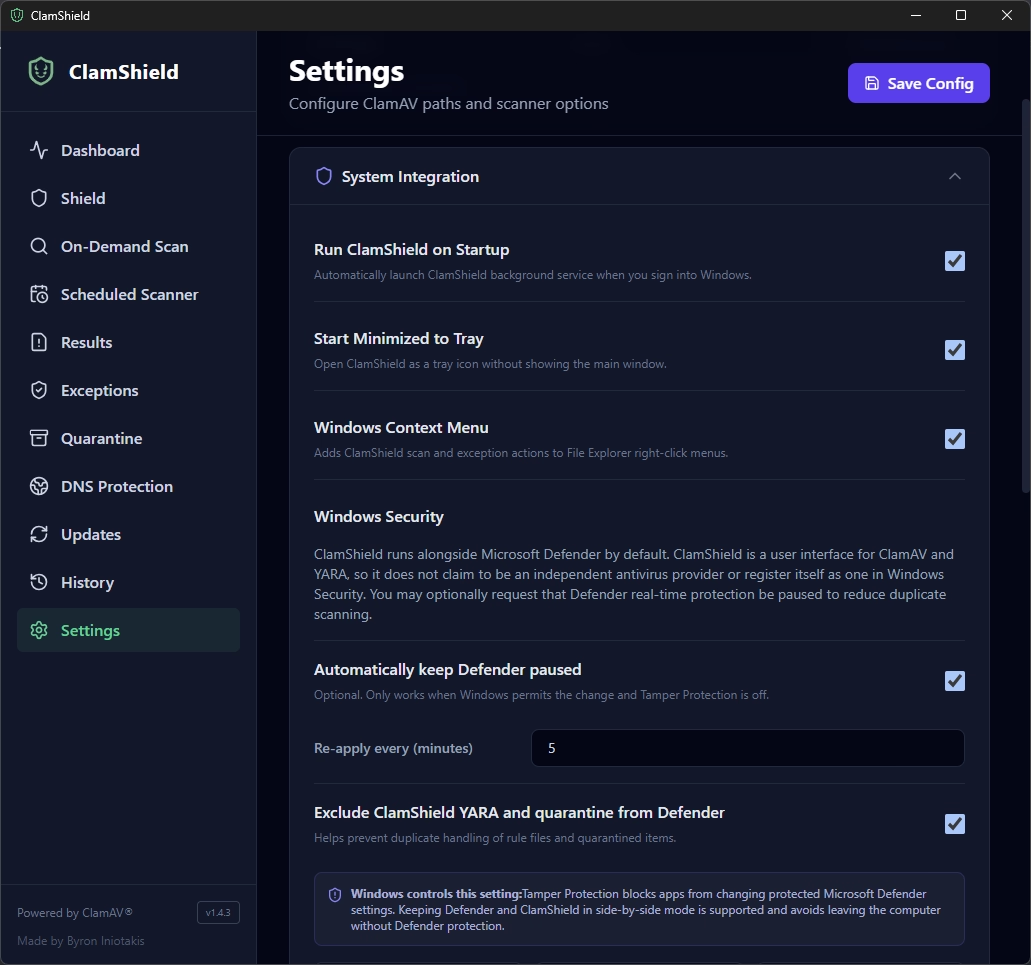
ClamShield: System Integration settings (startup, tray, context menu, Defender) - Photo credit: © SecuriteInfo.com
First stop: Settings > System Integration. Here, I tick everything:
- Run ClamShield on Startup: an antivirus that doesn't start with the session is a useless antivirus. The real-time shield and the scheduler only run if ClamShield is running.
- Start Minimized to Tray: ClamShield starts quietly in the system tray. Users don't get a window jumping in their face every time they log in (and they won't be tempted to close it).
- Windows Context Menu: adds “scan” and “add exception” to the File Explorer right-click menu. Ideal for checking a USB stick or a dodgy attachment in two clicks.
Pausing Microsoft Defender
ClamShield doesn't register as an antivirus provider in Windows Security: by default, it runs alongside Defender. Except that two real-time antiviruses scanning the same files means double the CPU and disk load, and sometimes conflicts (one locking the file while the other tries to scan it…).
So I ticked Automatically keep Defender paused, re-applied every 5 minutes, because Windows has an annoying habit of re-enabling Defender behind your back, especially after an update. I also ticked Exclude ClamShield YARA and quarantine from Defender, so that Defender doesn't go helping itself to ClamShield's quarantine the day it wakes up.
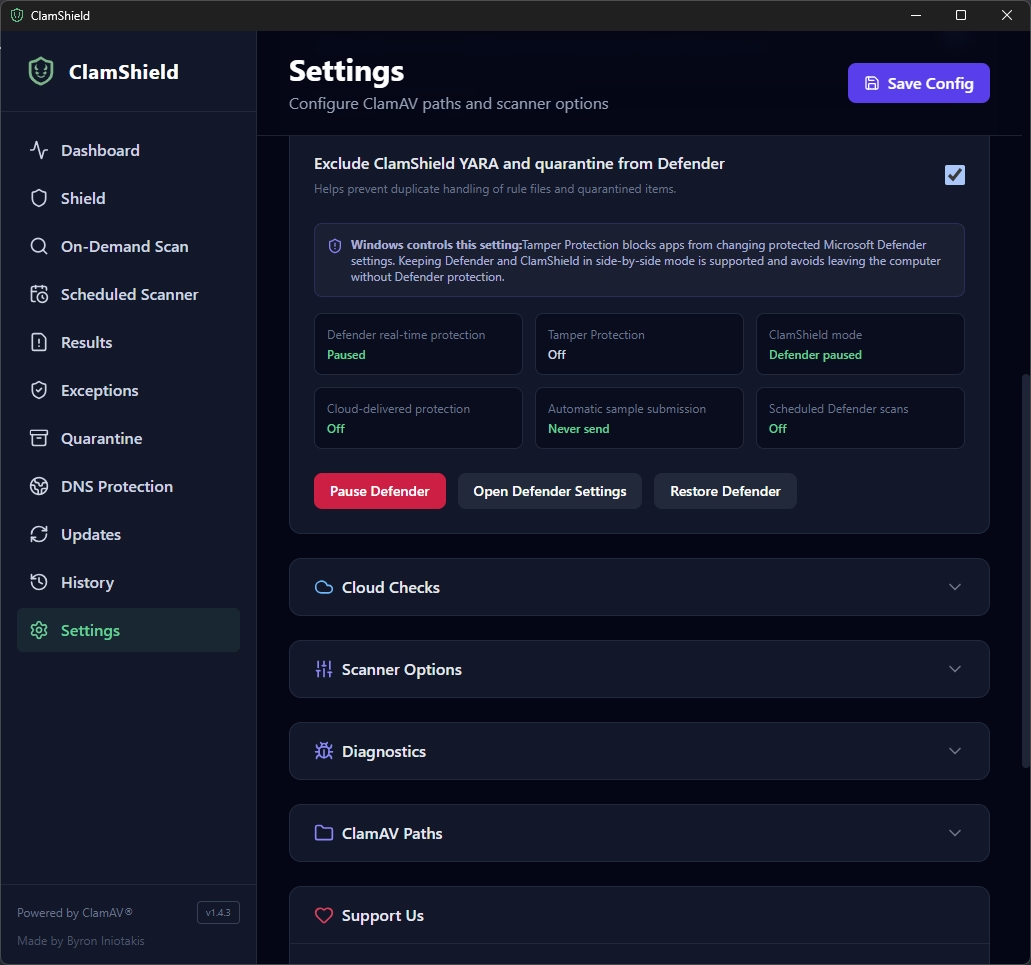
ClamShield: Microsoft Defender status paused, sample submission disabled - Photo credit: © SecuriteInfo.com
The result shows up in the status table: Defender real-time protection paused, cloud protection disabled, automatic sample submission set to “Never send” and Defender scheduled scans switched off. That last point is far from trivial in a business: with automatic submission, files from your workstations can be sent to Microsoft for analysis. When you handle contracts, quotes or customer data, keeping your files at home is definitely better.
Warning: pausing only works if Defender's Tamper Protection is disabled. If it's enabled, or if Defender is managed by GPO or Intune, ClamShield won't be able to change anything and will stay in side-by-side mode, which is also supported. And if you change your mind, the Restore Defender button puts everything back the way it was.
Cloud Checks: VirusTotal, only if you have a key
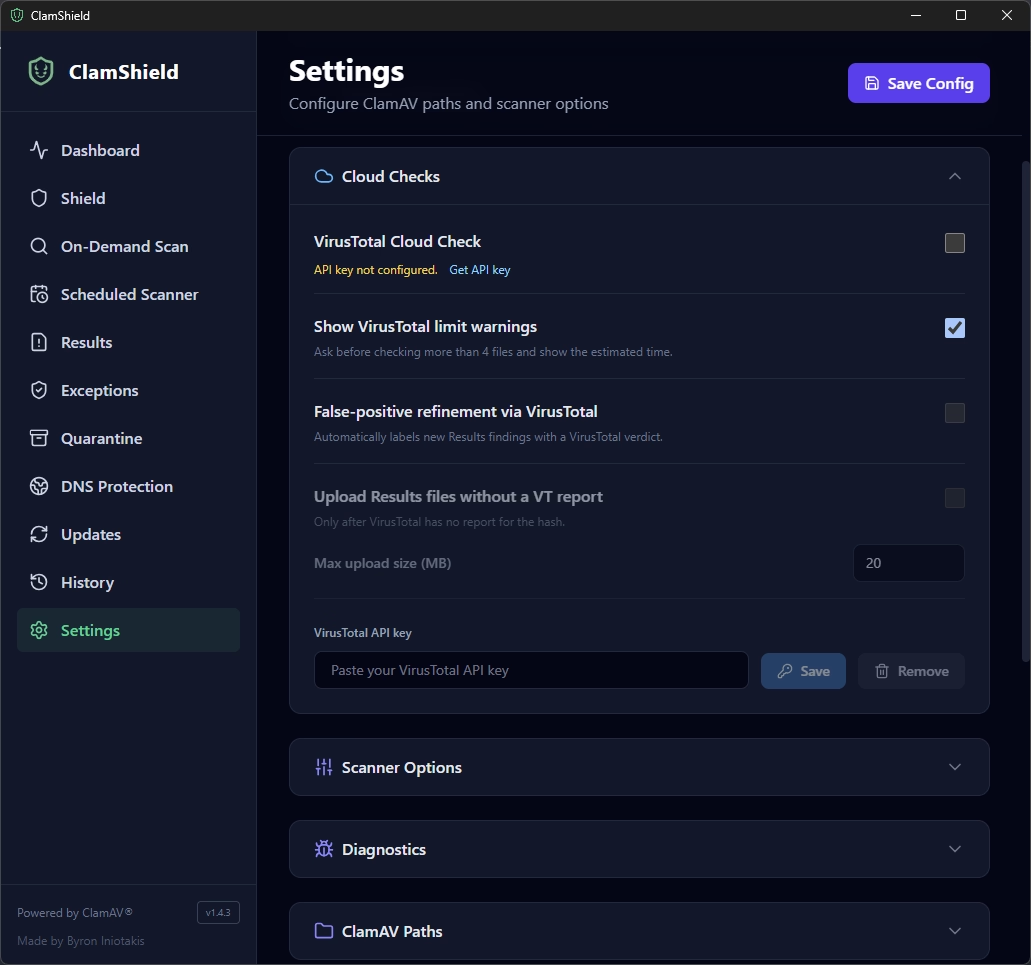
ClamShield: VirusTotal Cloud Check options - Photo credit: © SecuriteInfo.com
ClamShield can query VirusTotal to check files by their hash, refine false positives, or even upload unknown files. On my machine, everything is unticked for a very simple reason: I don't have a VirusTotal API key. Without a key, the option is unusable anyway.
If you have one, paste it into the VirusTotal API key field and tick VirusTotal Cloud Check: a second opinion is never a bad thing. False-positive refinement via VirusTotal automatically labels detections with VT's verdict, which helps with triage. On the other hand, think twice before enabling Upload Results files without a VT report: a file uploaded to VirusTotal becomes downloadable by the platform's paying subscribers. Your “payroll 2026” Excel file has no business being there.
I left Show VirusTotal limit warnings ticked: the free API is limited in requests per minute, and ClamShield warns you before launching a check on more than 4 files that will take forever.
Scanner Options: performance and behaviour
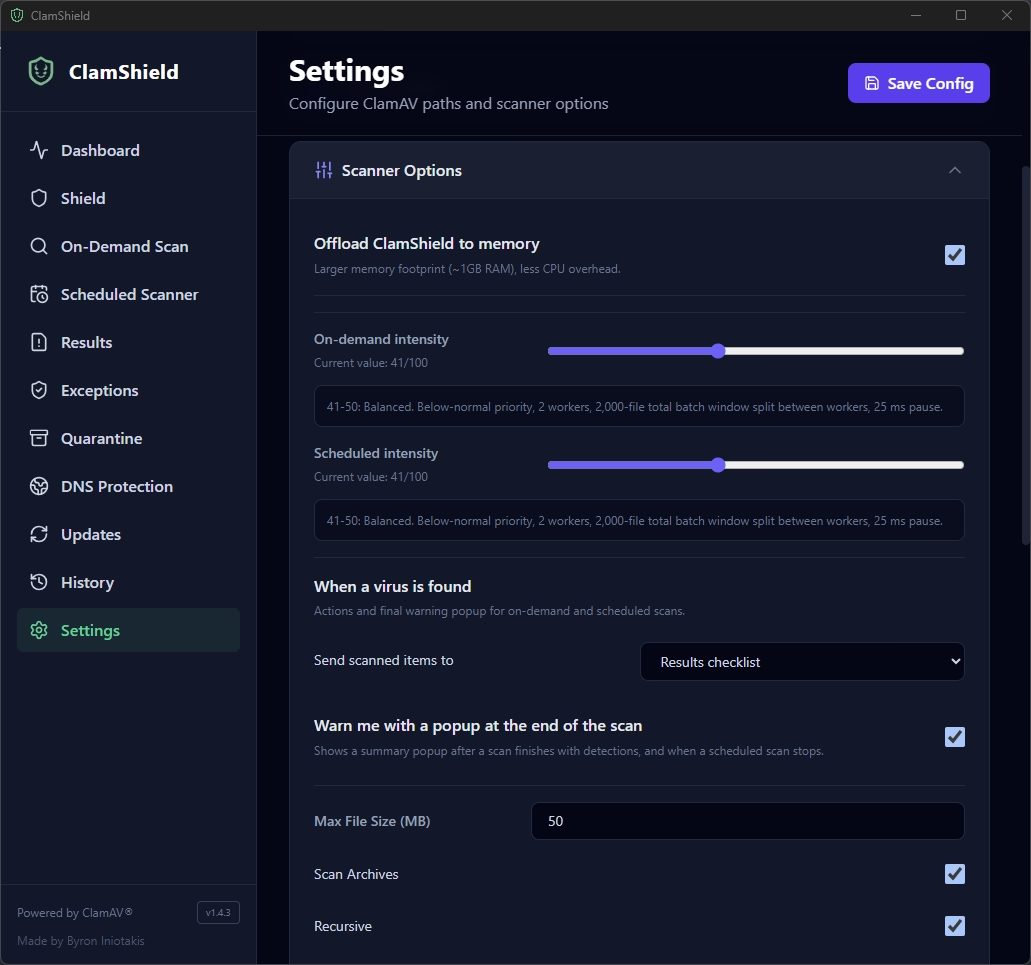
ClamShield: Scanner Options, memory, intensity, action on detection, maximum size - Photo credit: © SecuriteInfo.com
Memory and intensity
Offload ClamShield to memory: ticked. ClamShield keeps the engine and signatures loaded in RAM (about 1 GB) instead of reloading them for every scan. Reloading several million signatures takes time and CPU. On a modern PC with 16 GB of RAM, 1 GB for the antivirus is a good deal. On an old machine with 4 GB, untick it.
On-demand intensity and Scheduled intensity are set to 41/100, i.e. the “Balanced” profile: below-normal priority, 2 workers, batches of 2,000 files and a 25 ms pause. The idea is for the scan to make progress without users seeing their PC crawl while they work. If your scheduled scans run on idle machines, you can push the “Scheduled” slider higher.
When a virus is found
Send scanned items to: Results checklist. No automatic deletion or quarantine: detections land in a list where you decide what to do with them. Why? Because no antivirus is immune to false positives, and a false positive that makes a line-of-business application's DLL disappear means a guaranteed call to the helpdesk at 8:01 a.m.
Warn me with a popup at the end of the scan: ticked, so that a detection doesn't go unnoticed in a tab nobody ever opens.
File and archive size
Max File Size: 50 MB. Beyond that, the file isn't scanned. The vast majority of malware weighs far less than that, and it avoids spending hours on ISO images or videos. Scan Archives and Recursive are ticked: malware loves to hide in ZIP files that themselves contain ZIP files, so you have to open every last Russian doll.
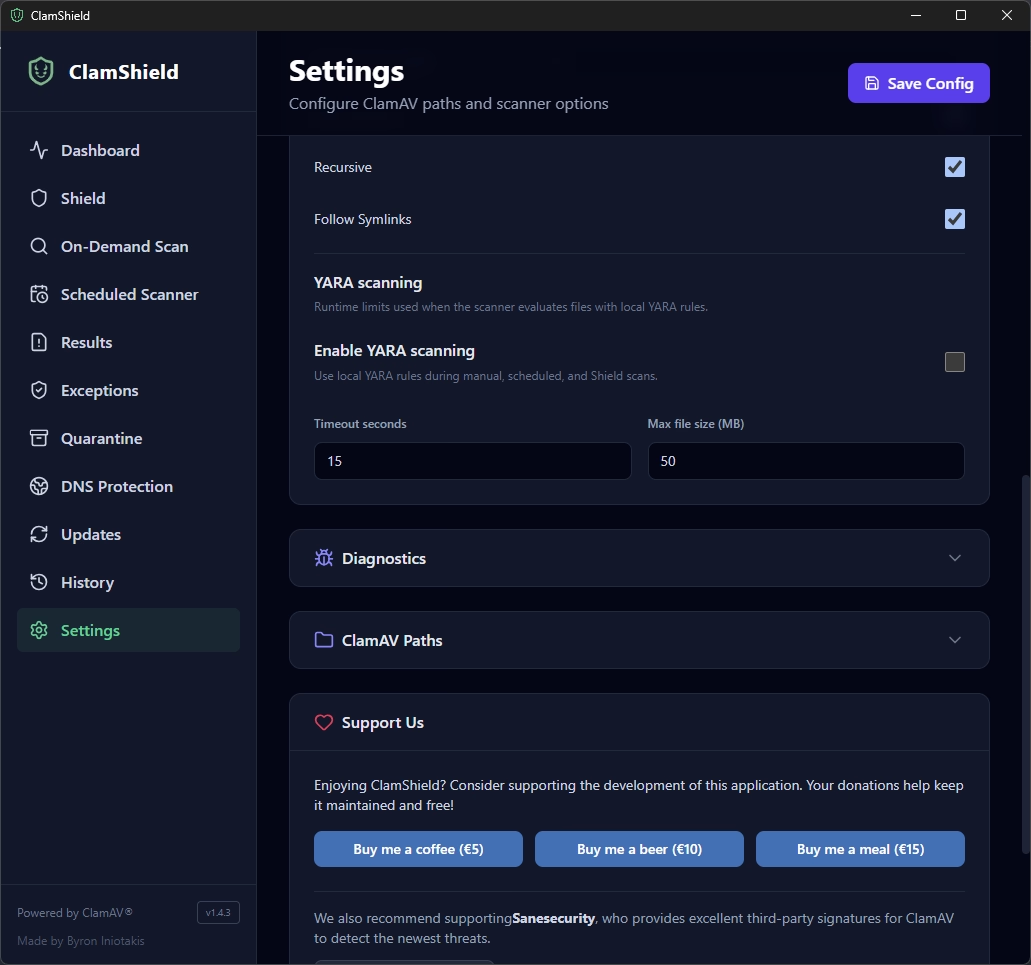
ClamShield: Follow Symlinks and YARA scanning disabled - Photo credit: © SecuriteInfo.com
Follow Symlinks: ticked as well, so that symbolic links and junctions can't be used as hiding places.
YARA: disabled, and on purpose
ClamShield can use YARA rules (YARA Forge rules are even downloaded automatically). But I deliberately left Enable YARA scanning unticked, because there are too many false positives. Public YARA rules are often written for threat hunting, where you'd rather cast a wide net and sort through it by hand afterwards. On a business workstation, an avalanche of unjustified alerts has a perverse effect: users (and admins) end up ignoring all alerts… including the real one. ClamAV, SecuriteInfo and SaneSecurity signatures do the job very well without that background noise.
Signature updates: where it all happens
An antivirus is first and foremost its signatures. ClamAV with only the official signatures is a bit like a security guard who only knows the faces of last year's burglars. Here's how I set up the Updates tab.
Official ClamAV signatures
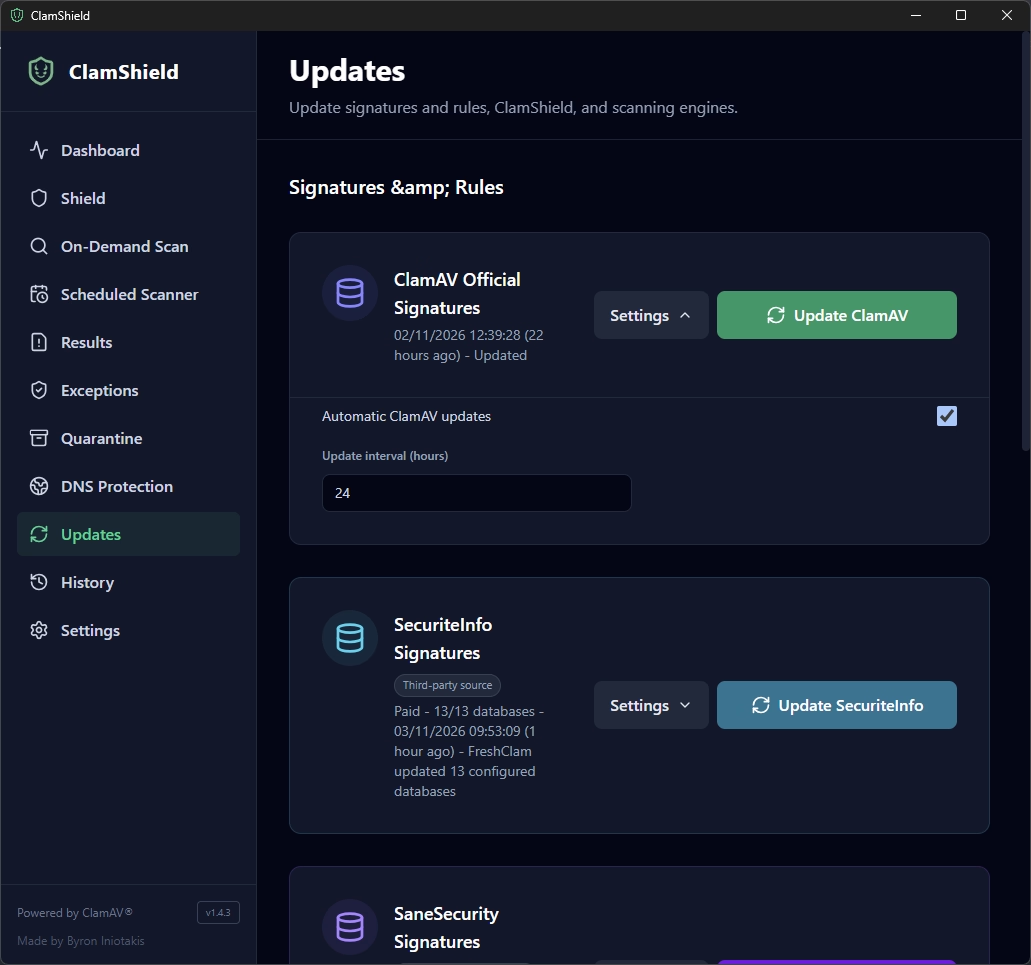
ClamShield: automatic update of official ClamAV signatures every 24 hours - Photo credit: © SecuriteInfo.com
Automatic ClamAV updates ticked, with an interval of 24 hours. The official signatures are the foundation, you need them, but they move more slowly than third-party databases, and ClamAV's update servers don't appreciate people knocking on the door every five minutes.
SecuriteInfo signatures: the subscription that changes everything
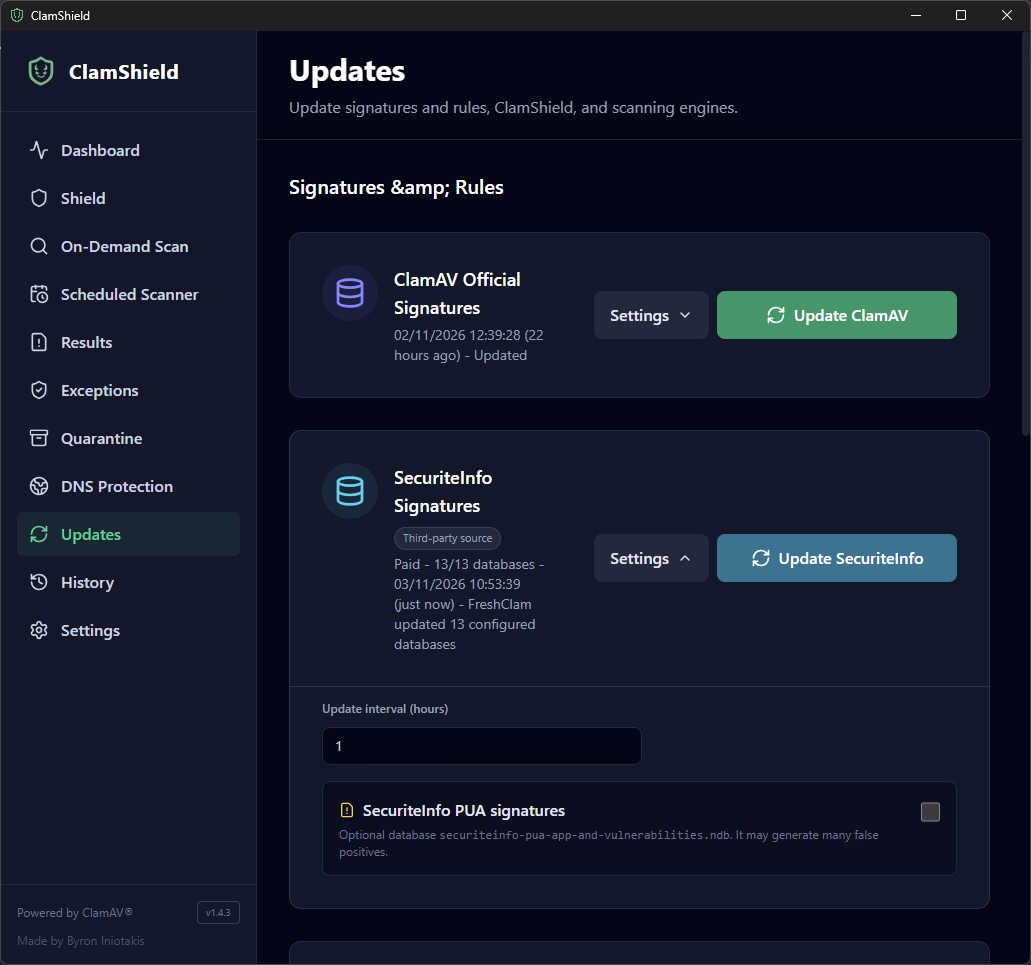
ClamShield: paid SecuriteInfo signatures updated every hour, PUA disabled - Photo credit: © SecuriteInfo.com
Yes, I'm blowing my own trumpet a bit, but this really is where it all plays out. SecuriteInfo signatures complement ClamAV with several million additional signatures, published every hour. Hence the interval set to 1 hour: there's no point having signatures published every hour if you only fetch them once a day. The “Paid - 13/13 databases” status confirms that the subscription is active and that all databases are up to date.
Why take out a subscription rather than settle for the free version?
- Recent malware: the free version only covers malware that is at least a year old. Subscriptions include “0-hour” malware, captured the very same day. And what's attacking your workstations today is today's malware, not last year's. That's exactly the gap in the armour of the official signatures.
- Professional use: the free version isn't intended for commercial use. In a business, the subscription is also what keeps you on the right side of the licence.
- Convenience: fast downloads, support for several IP addresses depending on the plan, and support if something goes wrong.
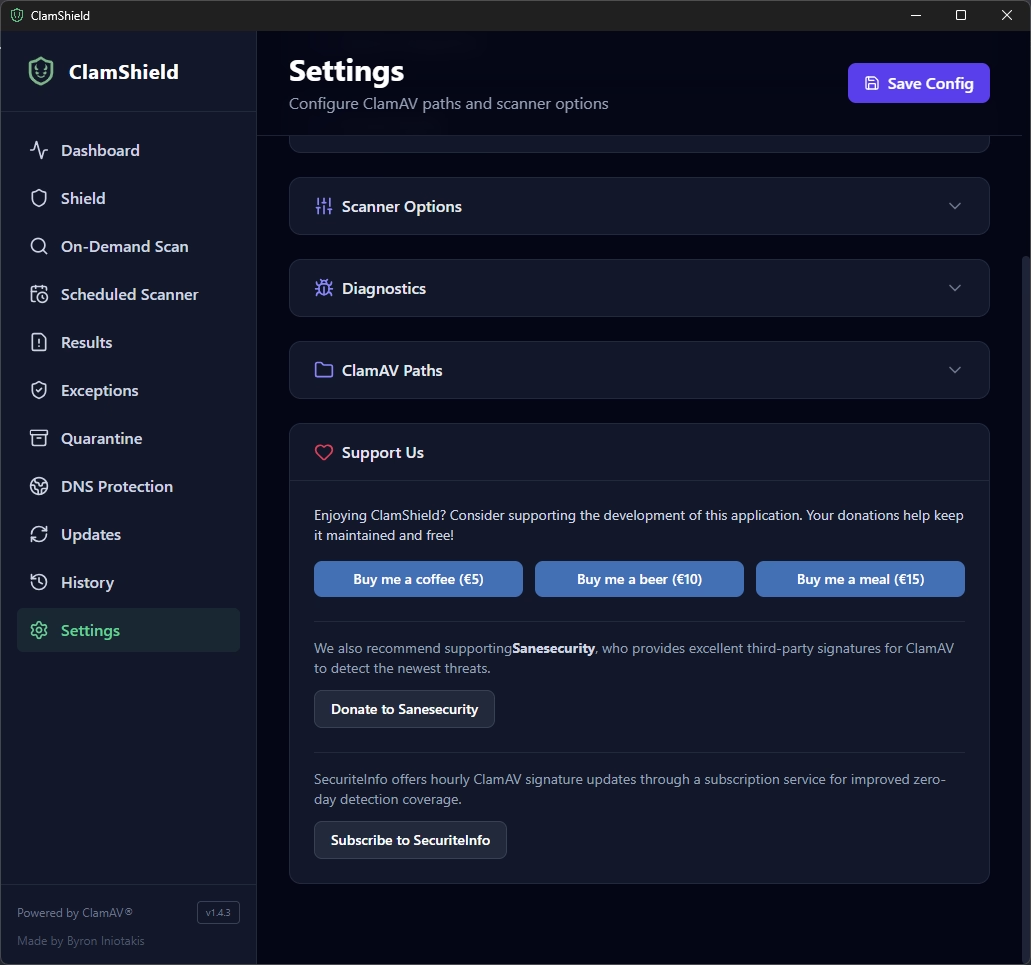
ClamShield: Subscribe to SecuriteInfo button in Support Us - Photo credit: © SecuriteInfo.com
To subscribe, head to Settings > Support Us > Subscribe to SecuriteInfo. ClamShield's developer says so himself: SecuriteInfo's hourly updates improve zero-day threat coverage. You can also check out the details of the signature plans for ClamAV.
If you're a business with just 2 or 3 workstations, I recommend the Professional plan at €29.90 / year.
If you're an SME with several workstations and servers, I recommend the Gold plan at €99.00 / year.
SecuriteInfo PUA: paranoid mode only
Did you notice that the SecuriteInfo PUA signatures box isn't ticked? This optional database, securiteinfo-pua-app-and-vulnerabilities.ndb, detects “potentially unwanted applications” and vulnerable software: adware, remote access tools, admin utilities, old software versions…
The problem is that in a business, lots of perfectly legitimate tools fall into these categories: the support team's VNC, the admin's diagnostic tools, the not-so-young version of the line-of-business software. Result: a high risk of false positives. Keep it for paranoid mode: ultra-sensitive workstation, admin machine, one-off audit of a fleet.
SaneSecurity signatures
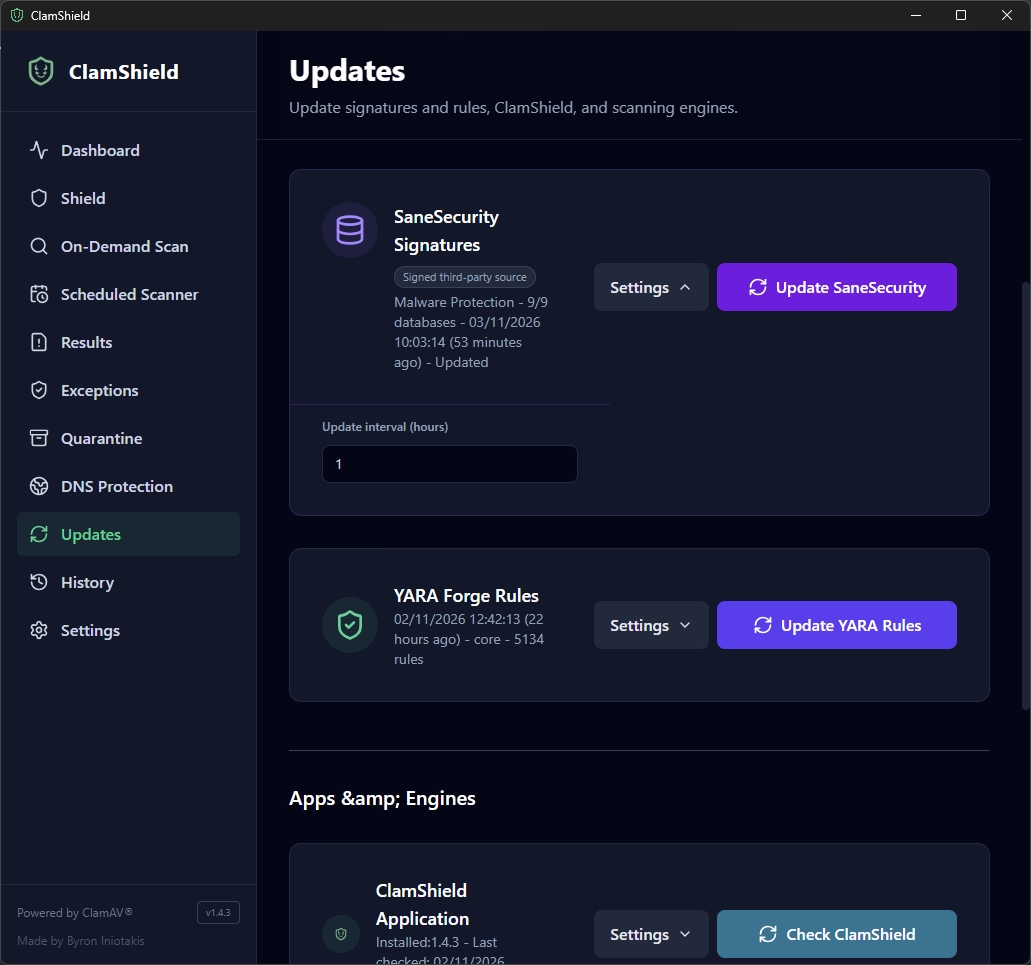
ClamShield: SaneSecurity signatures and YARA Forge rules - Photo credit: © SecuriteInfo.com
Third source, SaneSecurity: its databases are signed (ClamShield checks the publisher's GPG signature) and strongly focused on phishing, scams and booby-trapped documents, which complements the other two nicely. “Malware Protection” profile with its 9 databases, updated every hour, for the same reason as SecuriteInfo. And if the service is useful to you, a small donation via the Donate to Sanesecurity button won't hurt.
Just below, the YARA Forge rules keep updating even though YARA scanning is disabled. They're not used, but they're ready if you change your mind.
Application and engine updates
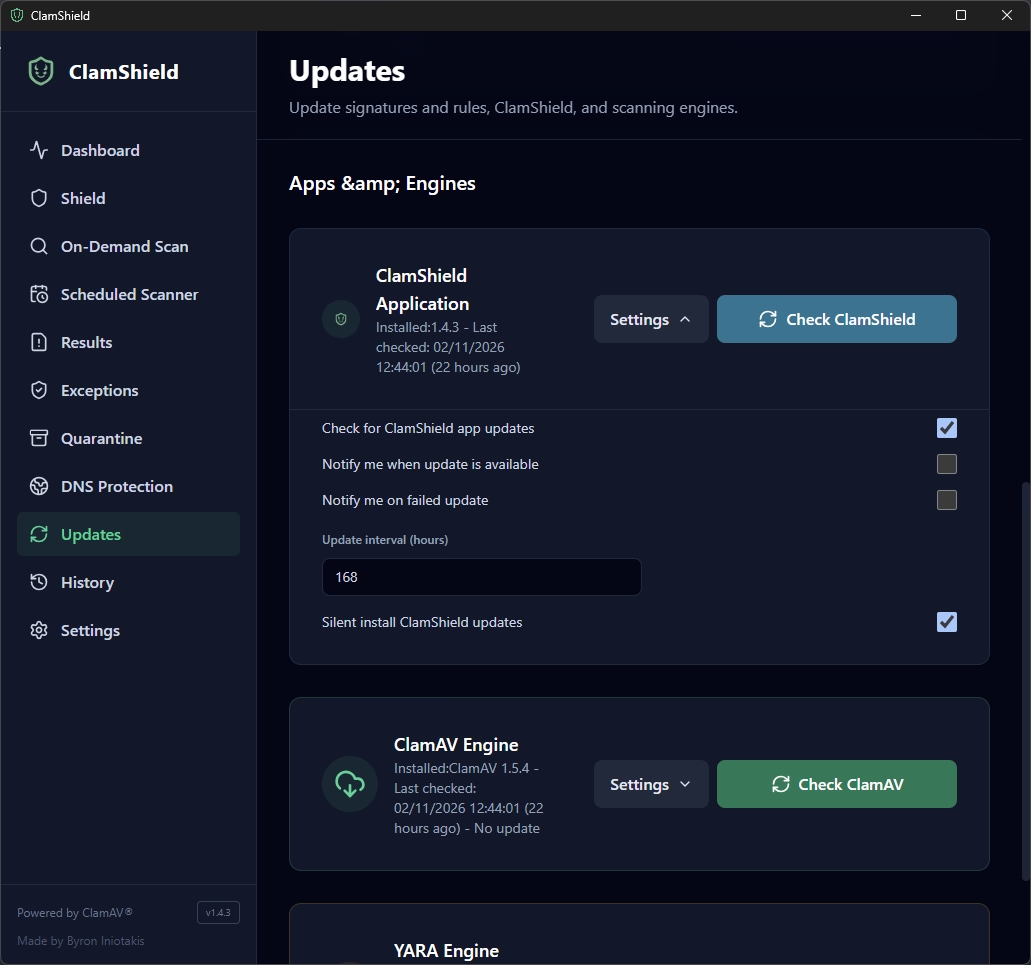
ClamShield: silent weekly application update - Photo credit: © SecuriteInfo.com
For the ClamShield application itself: Check for ClamShield app updates ticked, interval of 168 hours (once a week) and Silent install ClamShield updates ticked. Notifications are off. The logic: if you ask users to click “Install”, they won't. Better for it to happen on its own, without bothering them. A weekly check is more than enough for a graphical interface.
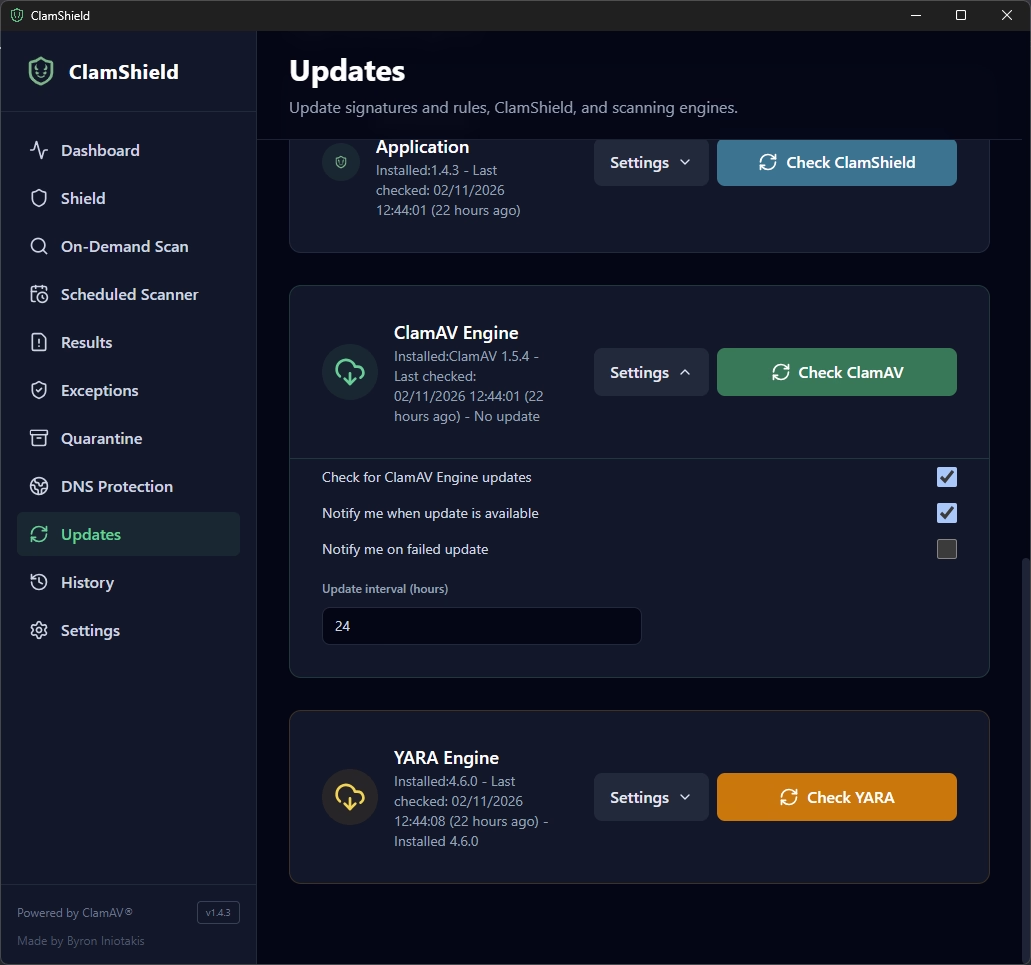
ClamShield: daily update check for the ClamAV engine and the YARA engine - Photo credit: © SecuriteInfo.com
For the ClamAV engine, it's more serious: check every 24 hours and Notify me when update is available ticked. The engine is what opens potentially booby-trapped files: when a flaw is fixed in one of its parsers, you want to know quickly. And some recent signatures require a minimum engine version to be loaded. An outdated engine means signatures you download for nothing.
Real-Time Shield: the real-time shield
Monitored folders
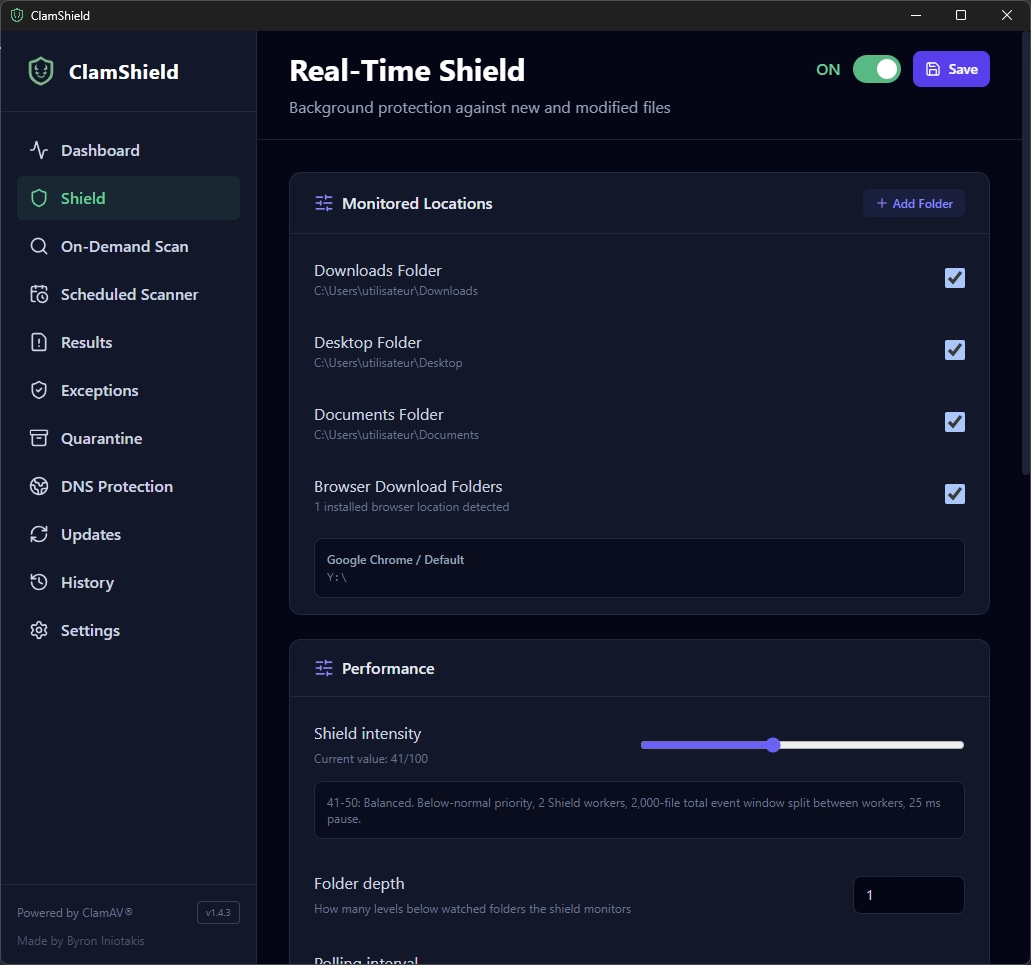
ClamShield: folders monitored by the Real-Time Shield - Photo credit: © SecuriteInfo.com
The shield is ON (obviously) and monitors Downloads, Desktop, Documents and the browsers' download folders (here, Chrome is detected automatically). These are the classic entry points for malware: what you download, the attachment saved “quickly” to the desktop, the document received from a partner.
The ClamShield shield doesn't monitor the whole disk like a kernel-integrated antivirus: it monitors the folders you tell it to. If your users receive files elsewhere (shared exchange folder, drop folder for a line-of-business application…), add it with Add Folder.
Performance
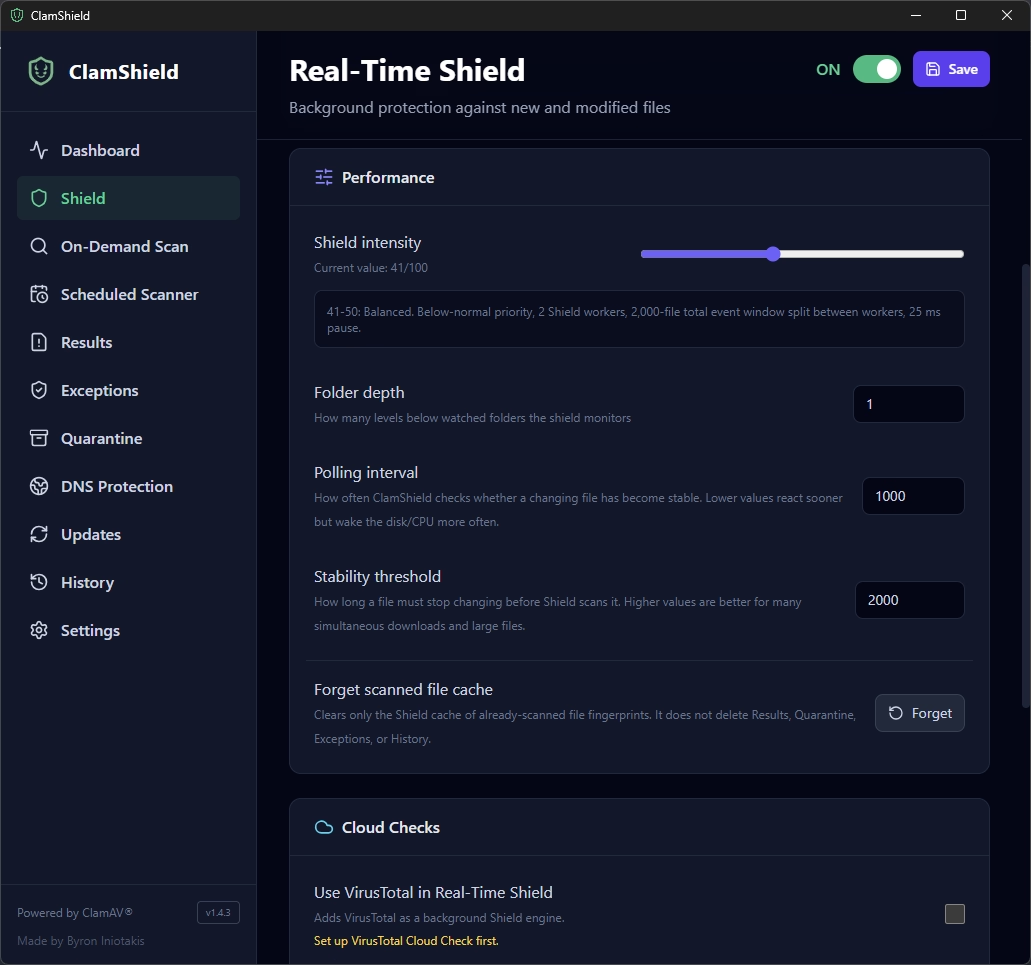
ClamShield: shield performance, depth, polling interval and stability threshold - Photo credit: © SecuriteInfo.com
- Shield intensity: 41/100, “Balanced” profile, same as for scans. The shield runs all the time, so it has to stay discreet.
- Folder depth: 1. The shield monitors the folder and one level of subfolders. Deeper means more coverage but also more load.
- Polling interval: 1,000 ms. ClamShield checks every second whether a file being written has stabilised.
- Stability threshold: 2,000 ms. A file must stop changing for 2 seconds before being scanned. Without this, ClamShield would scan a half-written download, for nothing. If your users download lots of large files at the same time, raise this value.
The Forget button clears the hash cache of already-scanned files (without touching results, quarantine or exceptions). Handy for forcing a new scan, since by default the shield ignores files that haven't changed since their last scan.
Cloud and notifications
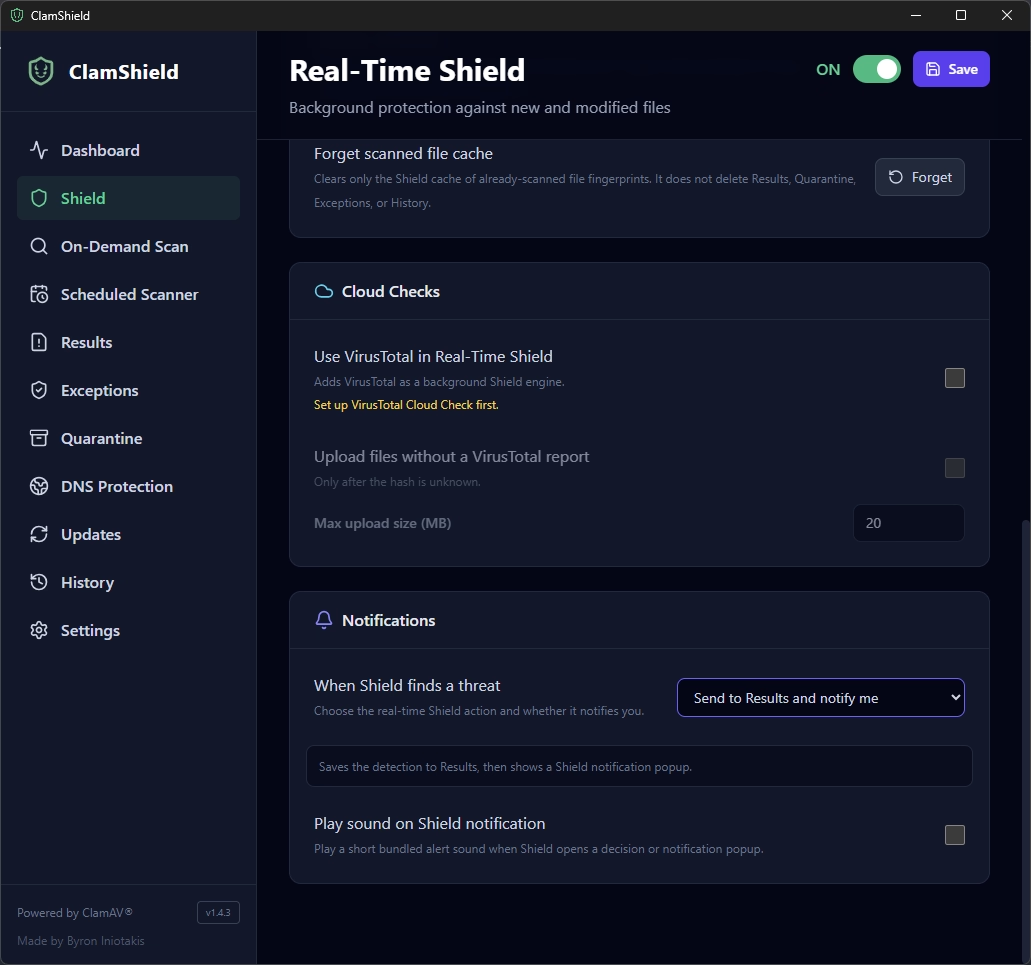
ClamShield: VirusTotal disabled and shield notifications - Photo credit: © SecuriteInfo.com
VirusTotal is disabled in the shield, for the same reason as above: no API key. As for notifications, When Shield finds a threat is set to Send to Results and notify me: the detection is recorded in the results and a popup alerts the user. Same philosophy as for scans: you stay in control, no automatic deletion. Sound is muted, your open-plan office neighbours will thank you.
DNS Protection: only if you use public DNS
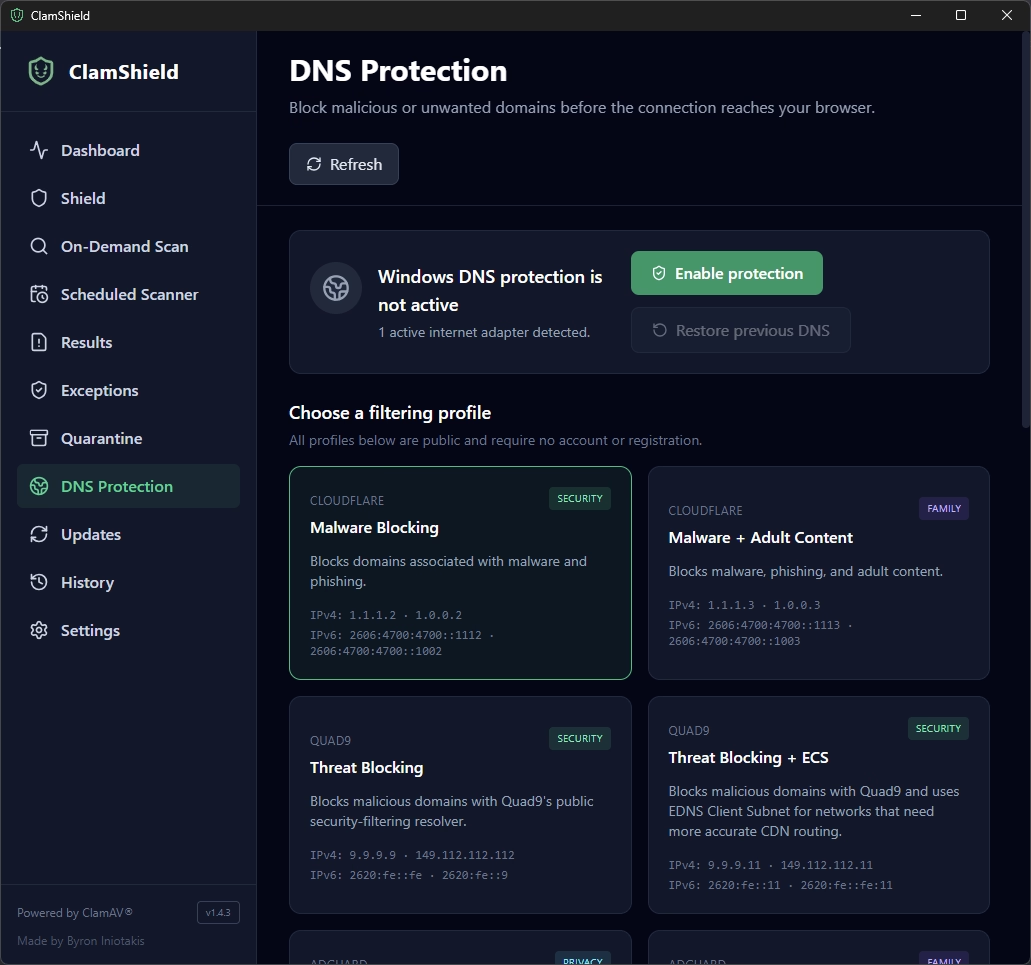
ClamShield: DNS protection with the CLOUDFLARE Malware Blocking profile - Photo credit: © SecuriteInfo.com
ClamShield can replace Windows' DNS servers with public resolvers that block malicious domains. On my setup, the protection isn't active, and that's normal: businesses generally use their own DNS servers (Active Directory, internal DNS, filtering on the firewall or proxy). Switching a workstation to public DNS breaks internal name resolution: no more domain controller, no more intranet, no more network shares. Fun times.
On the other hand, if your business uses public DNS, such as Google's 8.8.8.8, then enable the protection and choose CLOUDFLARE Malware Blocking:
IPv4: 1.1.1.2 · 1.0.0.2
IPv6: 2606:4700:4700::1112 · 2606:4700:4700::1002
Domains linked to malware and phishing simply stop resolving. If a user clicks the link in a fake delivery email, the page doesn't load. Free, no account, no sign-up. And the Restore previous DNS button lets you roll back.
Scheduled Scanner: the scheduled scan
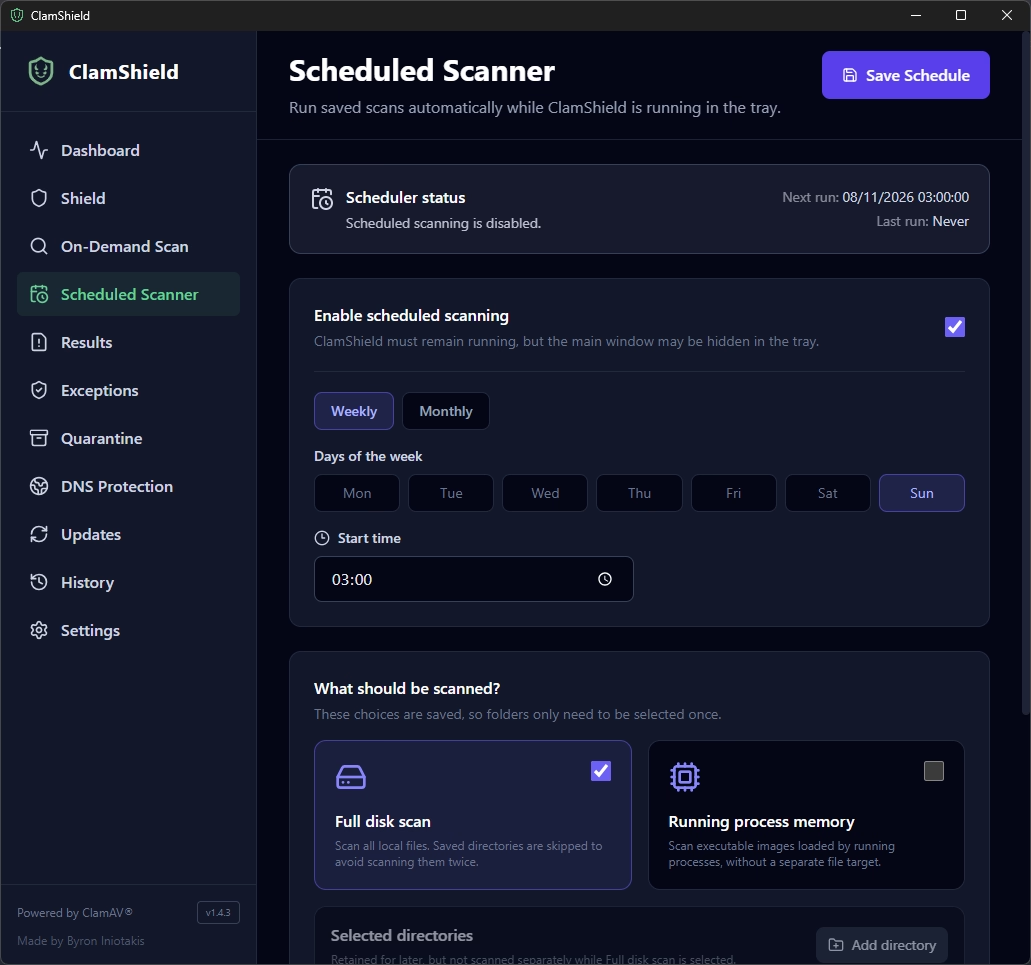
ClamShield: weekly full-disk scheduled scan on Sunday at 3 a.m. - Photo credit: © SecuriteInfo.com
Last screen, and not the least. The real-time shield only monitors a few folders, and a file that's undetectable the day it arrives may become detectable a week later, once new signatures are published. The scheduled scan is there to catch all of that.
Here, I enabled Enable scheduled scanning, in Weekly mode, on Sunday at 03:00, with a Full disk scan. But this scheduler can be configured to suit your needs:
- Frequency: weekly (choosing one or more days) or monthly.
- Run time: at night if the machines stay on, otherwise at a time when the workstation is on but not very busy, such as the lunch break. A PC that's switched off at 3 a.m. on a Sunday won't scan anything at all.
- What gets scanned: the whole disk with Full disk scan, or just a few directories via Add directory if a full scan takes too long on your machines. The Running process memory option also scans the executables loaded by running processes.
Two details not to forget: ClamShield must stay running (in the system tray is enough) for the scan to trigger, and you must click Save Schedule for the schedule to take effect.
In a nutshell
To sum up, here's the recipe for a perfectly tuned ClamShield in the enterprise:
- Automatic startup, discreet in the system tray, context menu enabled.
- Defender paused and sample submission switched off, to avoid double scanning and keep your files at home.
- Detections go to the results, with a popup: you decide, not the antivirus.
- No YARA (too many false positives), no VirusTotal without an API key.
- ClamAV signatures every 24 h, SecuriteInfo and SaneSecurity every hour, with a SecuriteInfo subscription for recent malware. No PUA, except in paranoid mode.
- Real-time shield on the folders where files come in.
- Cloudflare DNS protection only if you use public DNS.
- A scheduled full scan, adapted to your machines' hours.
With all that, ClamAV has little to envy commercial antiviruses, and you stay in control of everything. Have fun!
A few suggestions on ClamShield and ClamAV
Enjoyed this article? Here are a few suggestions you should like:
- Add 4,600,000 antivirus signatures to ClamAV and ClamShield
- What's the risk of using an older version of the ClamAV antivirus?
- Resolving the most common issues with the ClamAV antivirus
- FAQ: ClamAV and SecuriteInfo.com's unofficial signatures
Tags
Inscription à notre lettre d'information
Inscrivez-vous à notre lettre d'information pour vous tenir au courant de nos actualités et de nos dernières trouvailles.


© 2000-2026 - Tous droits réservés SecuriteInfo.com